
Connecting AI Tools with the Aimtell MCP Server
The Aimtell MCP server lets the AI tools you already use work directly with your Aimtell account. Once it is connected, you can ask questions like "how many subscribers did I add last week?" or "draft a push for Friday's sale" from inside Claude, Cursor, Windsurf or any other app that supports MCP.
MCP (Model Context Protocol) is an open standard that lets AI apps connect to outside services. Aimtell runs a hosted MCP server, so there is nothing to install on your side. You only need the server address and your Aimtell API key.
| Setting | Value |
|---|---|
| Server URL | https://mcp.aimtell.com/mcp |
| Authentication | Your Aimtell API key |
TIP
Just want to ask questions inside the Aimtell dashboard? You don't need the MCP server for that. Use the built-in Aimtell AI Assistant instead.
What You Can Do
The MCP server gives your AI tool access to the following parts of your account:
| Area | What the AI can do |
|---|---|
| Sites and account | List your websites and look up details for any of them |
| Campaigns | List campaigns with their sends, clicks and conversions, view day-by-day results, and schedule a manual campaign for a future time |
| Drafts | Save manual, triggered and RSS campaigns as drafts, and edit drafts you have already saved |
| Welcome notifications | Create or update the welcome notification new subscribers receive |
| Segments | List segments, view subscriber counts, and build new segments from a plain-language description |
| Subscribers | Look up subscribers and set custom attributes or aliases on a subscriber |
| Reporting | Pull analytics over time for one site or all sites, and read the notification log |
A few example prompts to try:
- "Which of my campaigns had the best click rate last month?"
- "How many subscribers does each of my sites have?"
- "Build a segment of subscribers in California who haven't visited in 30 days."
- "Draft a triggered campaign that welcomes new subscribers with a 10% off code."
Built-In Safeguards
The MCP server is designed so an AI tool can't send anything by surprise.
- Every change is previewed first. Before the AI creates or changes anything, the server returns a plain-language summary of exactly what will happen, and the change only goes through once the AI confirms that exact summary. This guards against the AI making a different change than it intended. If you'd like to approve each change yourself, ask the AI to show you the preview and wait for your go-ahead.
- There is no "send now". Pushes can only go out as a scheduled campaign with a future send time, so every send stays visible and can be cancelled from your dashboard until it fires.
- Drafts never send. Draft tools always save as a draft, and editing a draft can't schedule or send it. Triggered and RSS drafts still need to be activated by you in the dashboard.
- Your API key is never stored. The server uses your key only to make each request on your behalf.
Before You Begin
You'll need your Aimtell API key. Click API Keys in the left navigation of your dashboard and copy the key shown there. See How to find your API Key for screenshots.
Treat your API key like a password. Anyone who has it can work with your account.
Connecting Claude (Web and Desktop)
Step 1: Add a Custom Connector
In Claude, open Settings, go to Connectors, and choose Add custom connector.
Step 2: Enter the Server URL
Give the connector a name such as "Aimtell" and enter the server URL:
https://mcp.aimtell.com/mcpStep 3: Paste Your API Key
Claude will open a Connect your Aimtell account page. Paste your API key and click Connect.
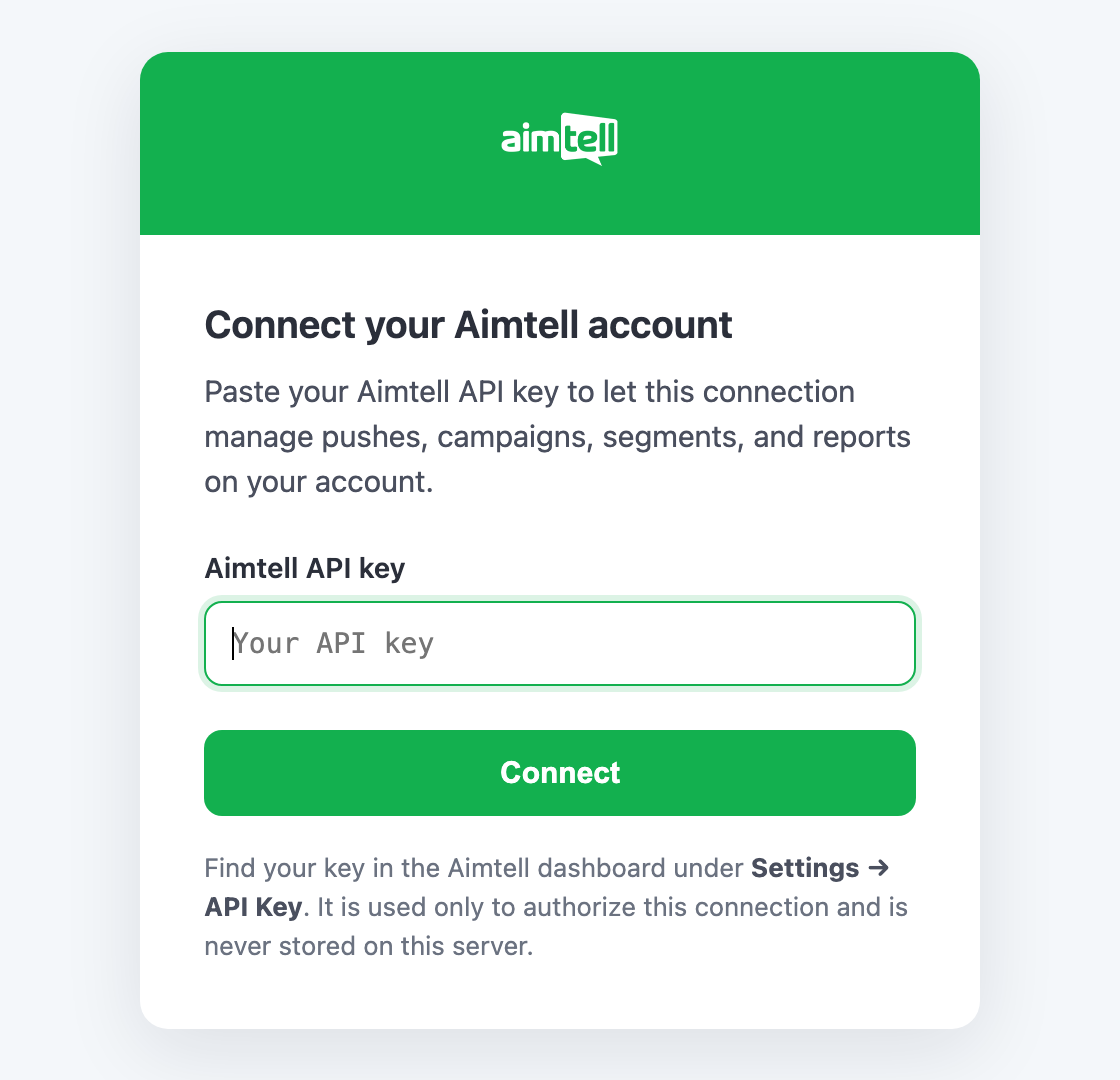
That's it. Start a new chat and ask Claude about your Aimtell account.
Connecting Claude Code
Run the following command in your terminal, replacing YOUR_AIMTELL_API_KEY with your key:
claude mcp add --transport http aimtell https://mcp.aimtell.com/mcp \
  --header "Authorization: Bearer YOUR_AIMTELL_API_KEY"
Connecting Cursor, Windsurf and Other MCP Apps
Add Aimtell to your app's MCP configuration file (for example mcp.json in Cursor), replacing YOUR_AIMTELL_API_KEY with your key:
{
  "mcpServers": {
    "aimtell": {
      "url": "https://mcp.aimtell.com/mcp",
      "headers": { "Authorization": "Bearer YOUR_AIMTELL_API_KEY" }
    }
  }
}
Any other app that supports remote MCP servers over HTTP can connect the same way: point it at https://mcp.aimtell.com/mcp and send your API key in an Authorization: Bearer header.
Good to Know
- Answers reflect your live account. The AI reads your current data each time you ask, and anything it creates appears in your dashboard straight away.
- Disconnecting. To stop an AI tool from accessing your account, remove the Aimtell connector or server from that app's settings.
If you have any questions about connecting your AI tools, please reach out to support@aimtell.com.