
Using the Aimtell AI Assistant
The Aimtell AI Assistant is built into your dashboard. Ask it a question in plain language and it looks up the answer in your account for you, whether that's how many subscribers you gained this week, which campaign performed best, or how a segment is trending. It can also build segments and prepare campaigns, and nothing is ever sent without your confirmation.
The AI Assistant is currently in Beta, and it's available on every page of the dashboard.
Opening the Assistant
Click the sparkles button at the top right of the dashboard, next to the notification bell. The assistant opens in a panel on the right side of the screen, so you can keep working on the page underneath.

To close the panel, click the × in its top corner, click anywhere outside it, or press Esc.
Asking a Question
Step 1: Choose a Site
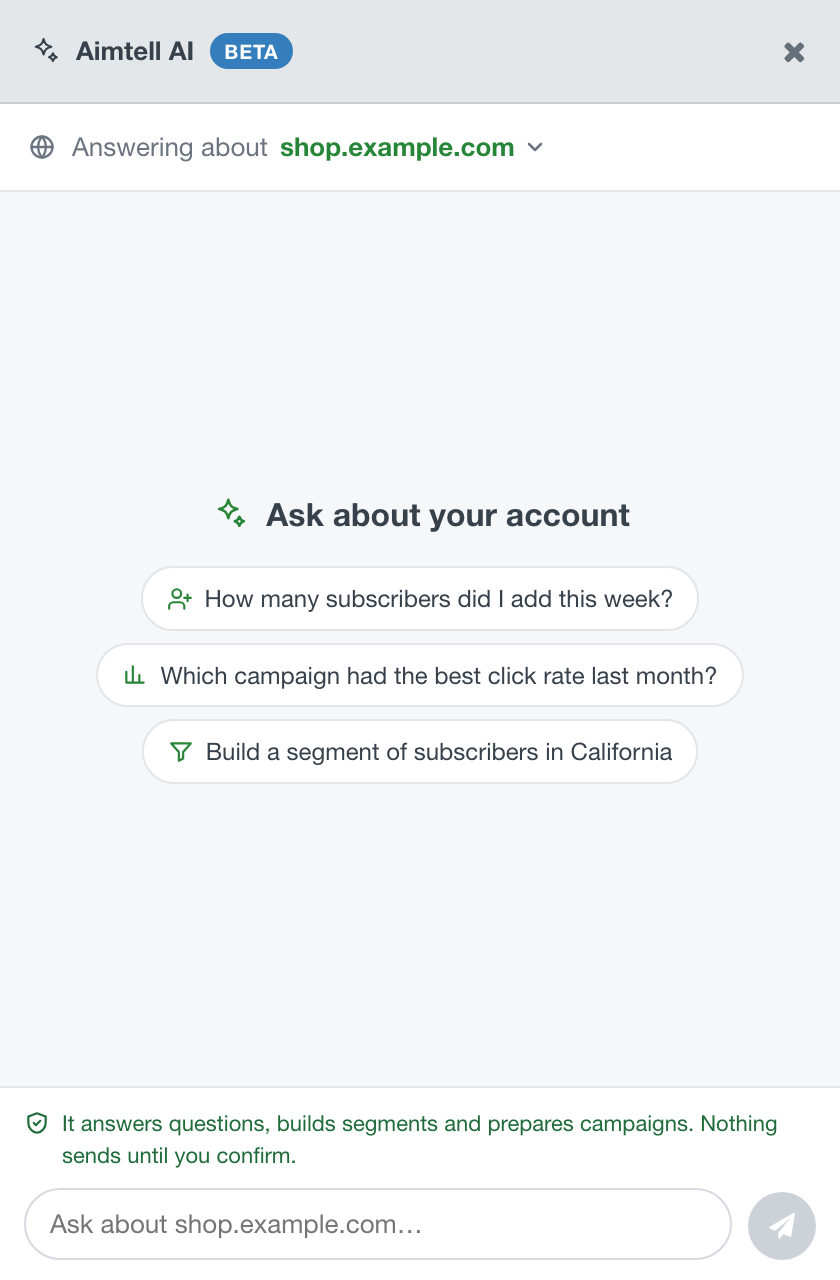
The Answering about bar at the top of a new conversation shows which website the assistant will look at. It starts on the site you're currently viewing in the dashboard. Use the dropdown to pick a different one.
Choosing a site here only affects the assistant. It doesn't change the site you're working on in the rest of the dashboard.
Step 2: Ask Away
Type your question in the box at the bottom and press Enter, or click one of the suggested questions to get started.
Step 3: Read the Answer
The answer appears as it's written. Above each answer, a small line shows which lookups the assistant ran in your account and how long it took, so you can see where the numbers came from.
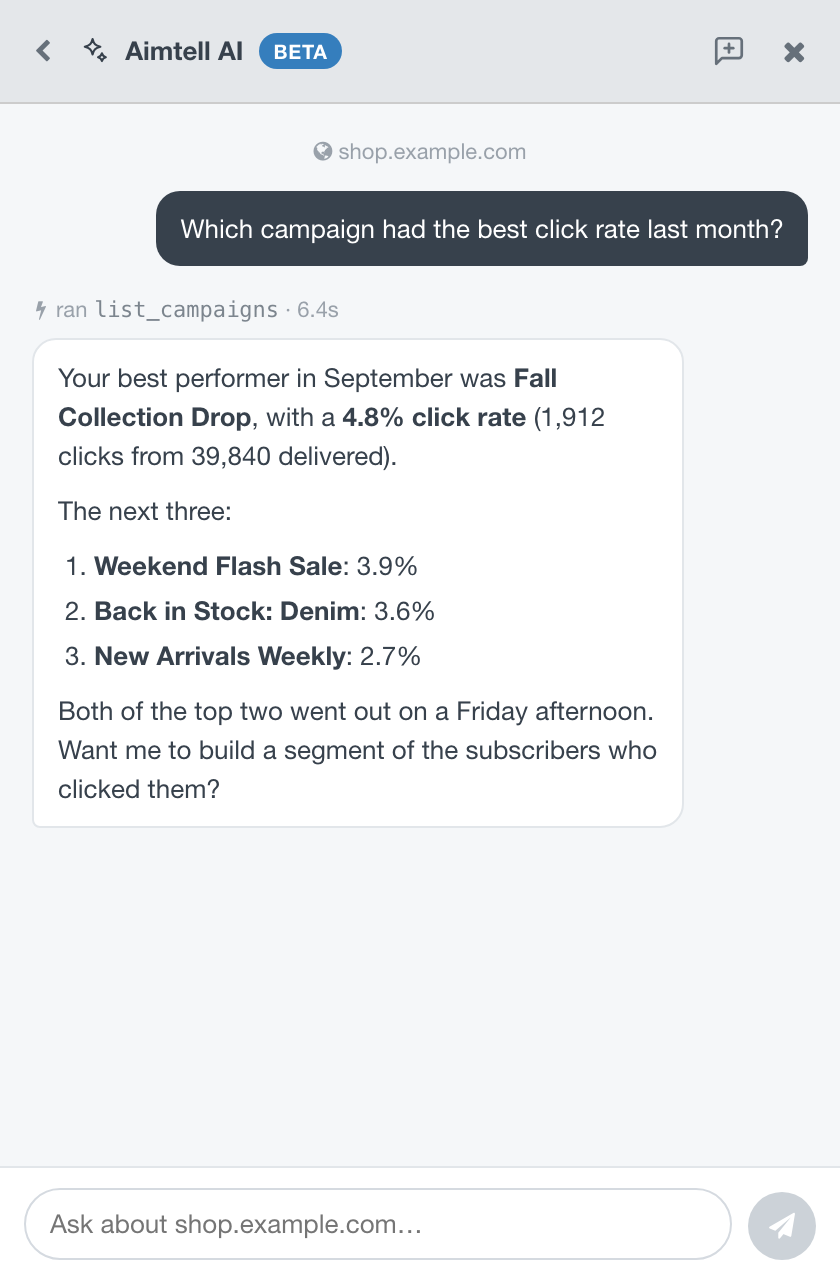
You can keep the conversation going with follow-up questions such as "what about the month before?" and the assistant will remember what you've already discussed.
What You Can Ask
The assistant can answer questions about anything on your account, including:
- Subscribers: growth over a period, totals by site, or details about a subscriber
- Campaigns: which campaigns performed best, and the sends, clicks and conversions for any campaign
- Analytics: opt-ins, unsubscribes, clicks and other trends over time
- Segments: what segments you have and how many subscribers are in each
- Notification logs: what was delivered recently
A few examples:
- "How many subscribers did I add this week?"
- "Which campaign had the best click rate last month?"
- "Compare this month's opt-ins to last month's."
- "How many subscribers are in my Cart Abandoners segment?"
Making Changes
The assistant can also do things for you:
- Build a new segment
- Save a manual, triggered or RSS campaign as a draft, or edit a draft you've already saved
- Schedule a manual campaign for a future time
- Set up or update your welcome notification
- Set a custom attribute on a subscriber
When you ask for any of these, apart from building a segment, the assistant first describes exactly what it will create or change. An Apply this change? bar then appears under its reply.
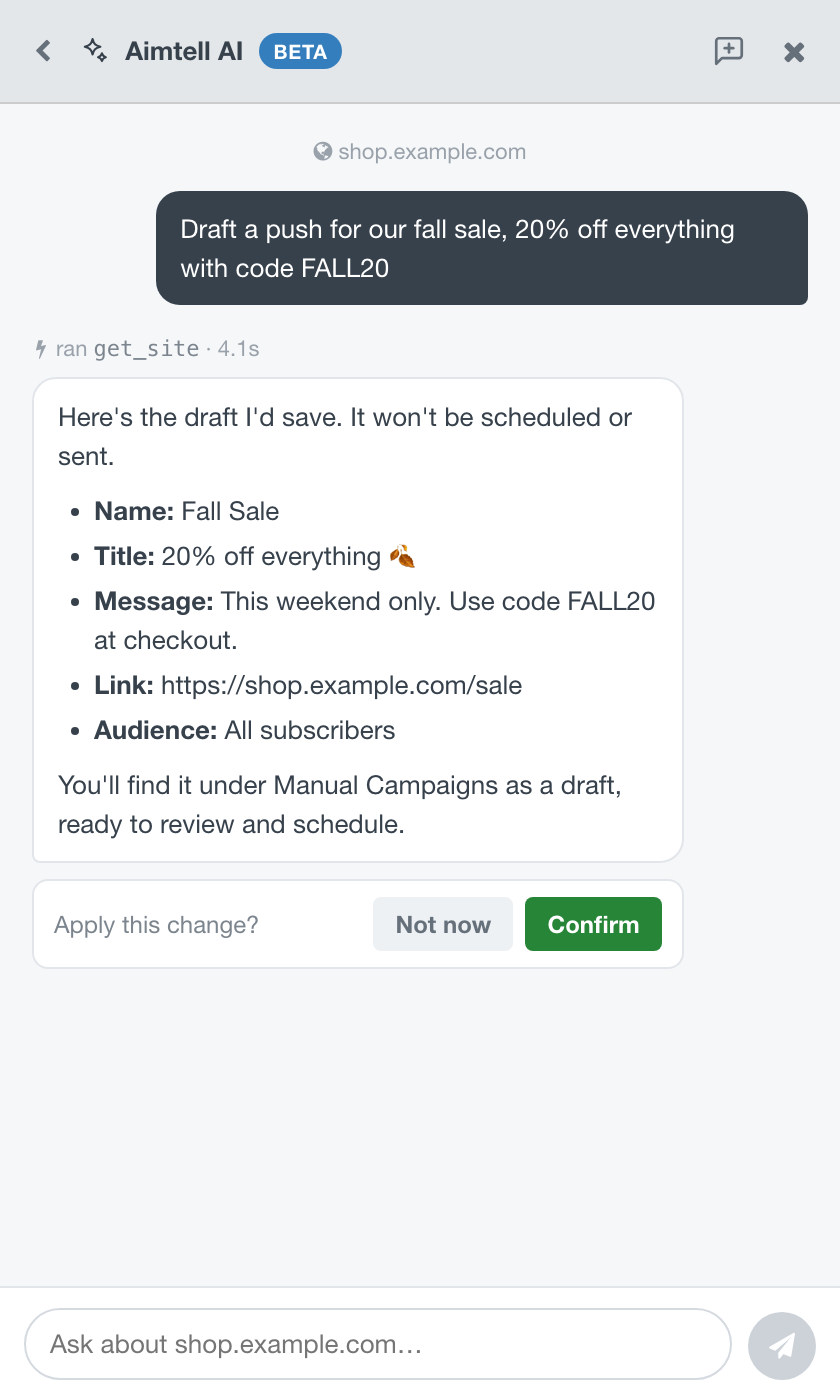
- Click Confirm to go ahead.
- Click Not now to leave everything as it is.
Nothing is created, scheduled or sent until you click Confirm. Segments are the one exception: they don't send anything and can be deleted at any time, so the assistant builds them straight away.
TIP
Drafts saved by the assistant appear with your other campaigns, ready for you to review. Triggered and RSS campaigns can't be activated from the assistant, so you stay in control of when they go live.
Your Conversations
Click the back arrow in the panel header to see your recent conversations, and the new conversation button beside the close button to start a fresh one. Hover over a conversation in the list and click the × to delete it.
Each conversation stays tied to the site it started with. To ask about a different site, start a new conversation and choose that site.
Conversations are kept in your browser tab. They stay with you as you move between dashboard pages, and they're cleared when you close the tab. They're not saved to your Aimtell account.
Good to Know
- It sees what you see. The assistant works with the same access you have, so it can only look at the sites your login can reach.
- Very long conversations. If a conversation gets very long, you'll be asked to start a new one.
- Big questions. If a question needs a lot of lookups, the assistant may run out of time and give a partial answer. Try asking about a single site, campaign or time period.
- Double-check important numbers. The assistant reads live data from your account, but like any AI it can make mistakes. Verify key figures in the relevant report before making decisions.
After you've asked a few questions, the assistant will ask how the answers are going. We read every response, so please let us know what's working and what isn't.
If you have any questions about the AI Assistant, please reach out to support@aimtell.com.